

How does the apartment finder work?
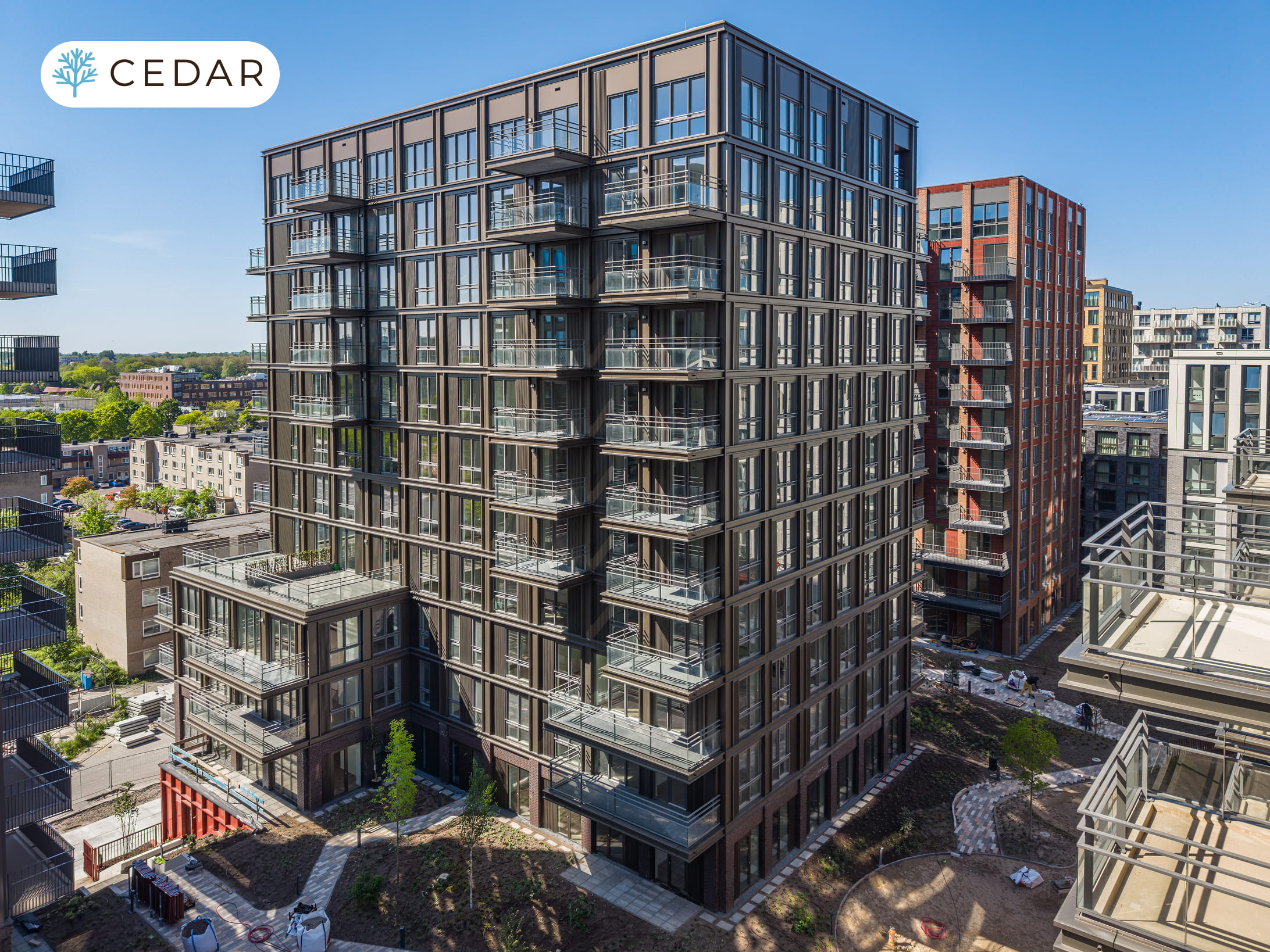
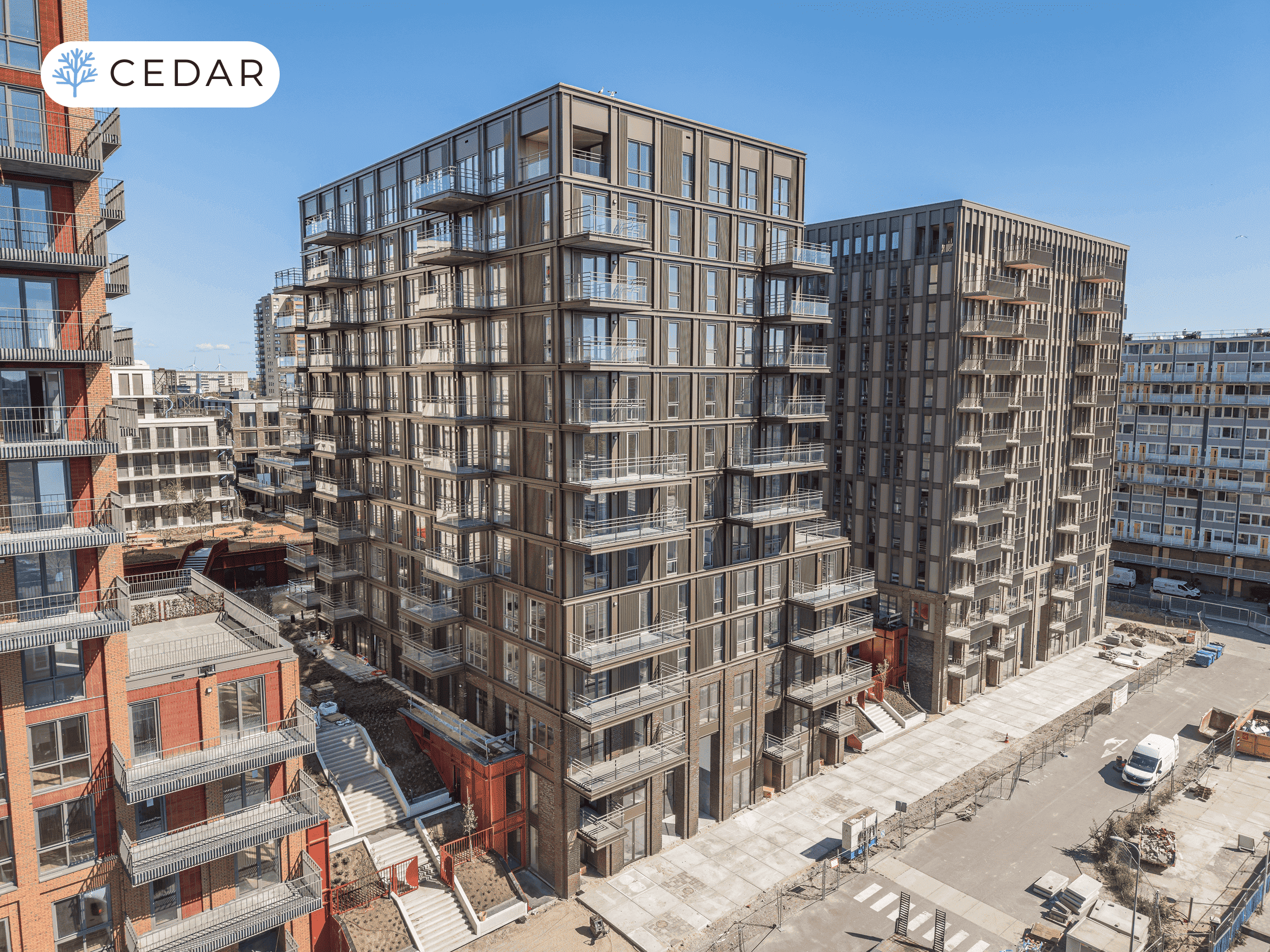
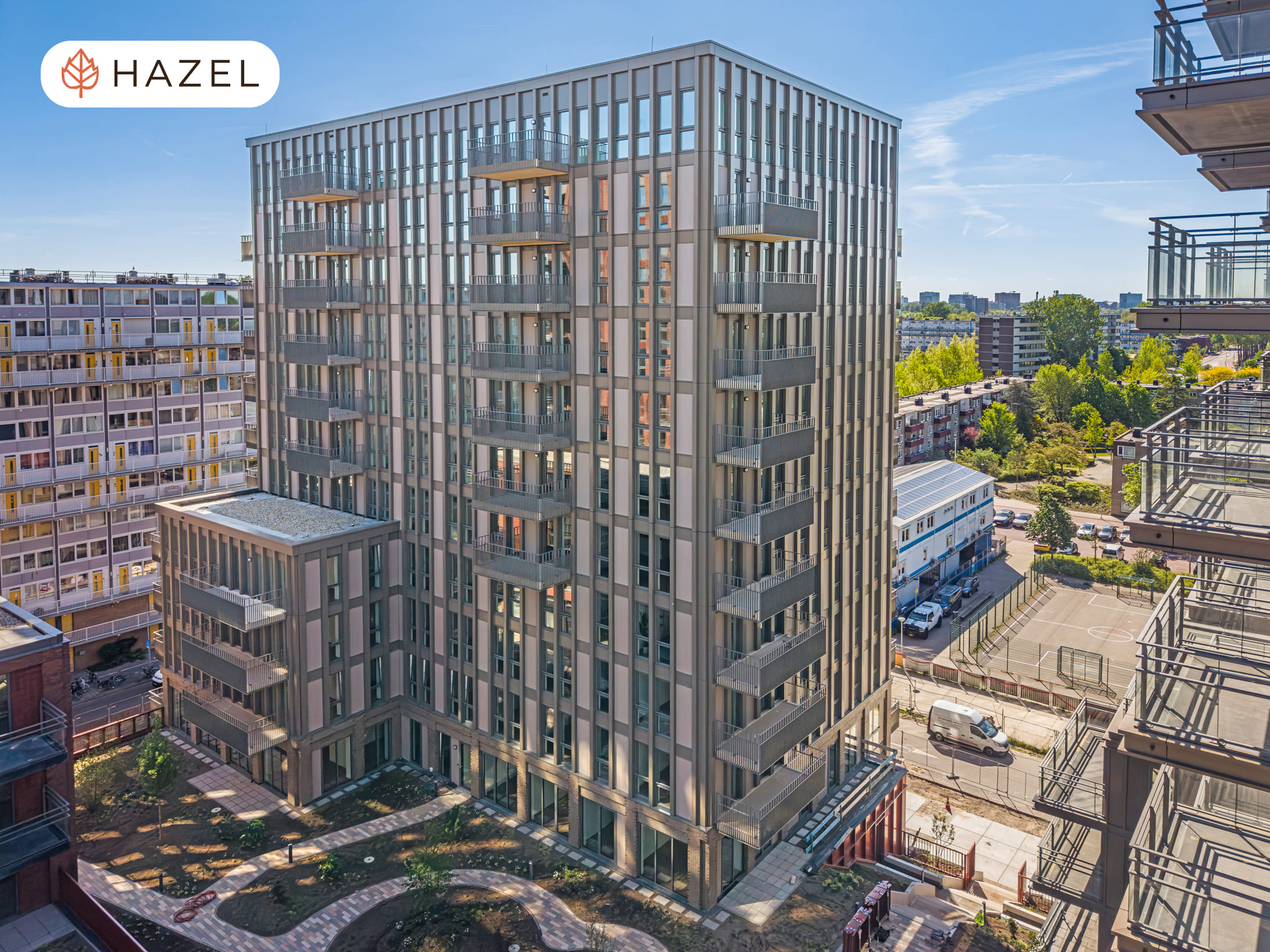
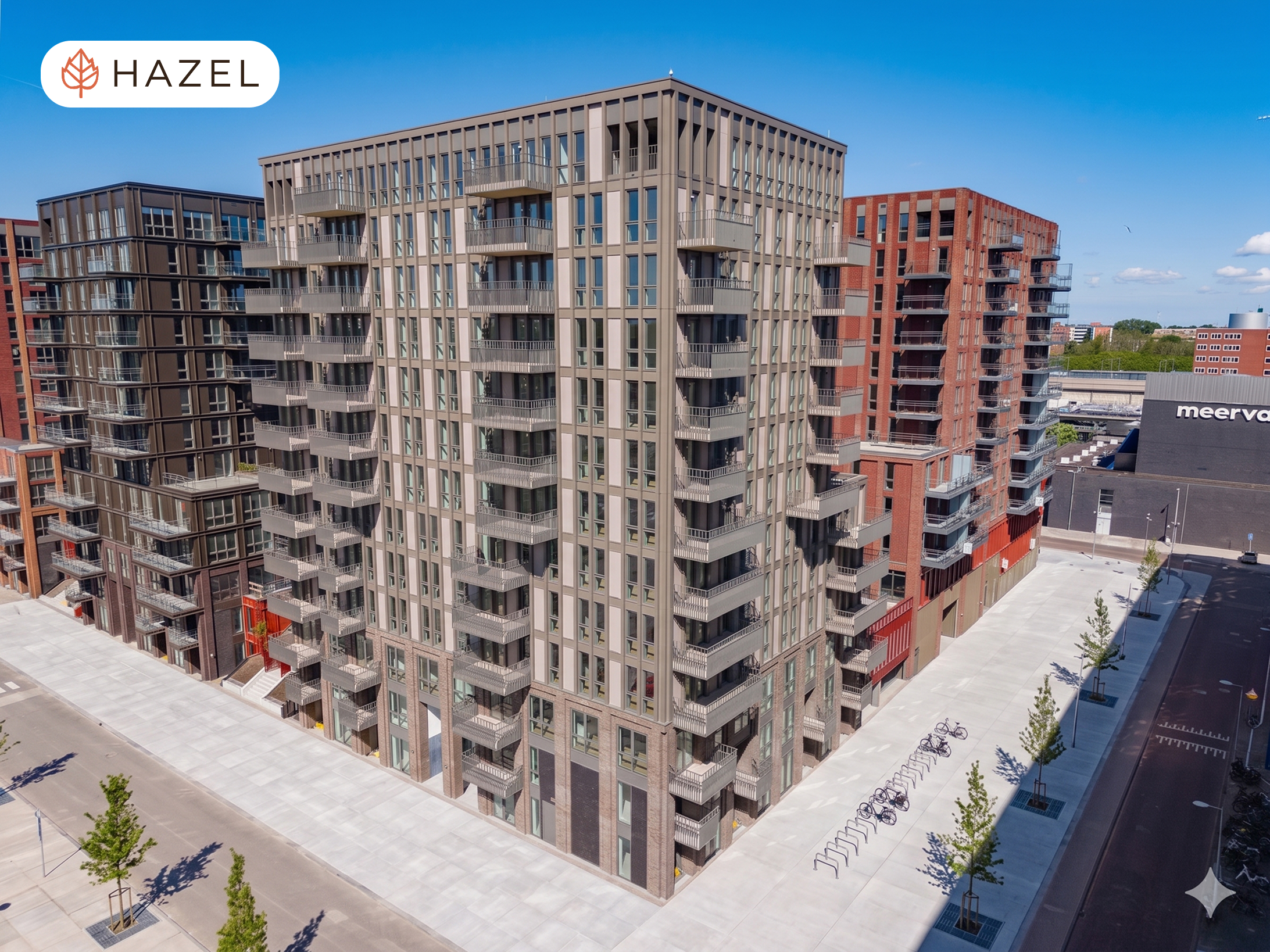
Apartment FinderUsing the Apartment Finder (the building view), you can click anywhere on the building to view more information about each property. Click on ‘View apartment’ in the property pop-up for detailed information, such as the floor plan and property description. Above the property search, select which view/building and which side of the building you wish to view.
Filters and list viewUse the filters next to the list view to refine your search. These filters are immediately applied to the clickable properties in the property search tool.
Save preferencesUse the ‘Add to my preferences’ button to save your preferences. Once you have finished adding your preferred properties (minimum of 3), click on the ‘Preferences’ button in the top right-hand corner. After completing the registration form, you will receive an email with a link to create an account. Via that link, you can set a password and then log in to your account.
|
34 Available
3 Geleverd (Rented)
14 Option to rent
30 Rented
| |
| FLOOR | APARTMENTS |
|---|---|
|
34 Available
3 Geleverd (Rented)
14 Option to rent
30 Rented
| |
| FLOOR | APARTMENTS |
|---|---|
|
36 Available
6 Geleverd (Rented)
6 Option to rent
39 Rented
| |
| FLOOR | APARTMENTS |
|---|---|
|
36 Available
6 Geleverd (Rented)
6 Option to rent
39 Rented
| |
| FLOOR | APARTMENTS |
|---|---|
|
19 Available
1 Geleverd (Rented)
7 Option to rent
45 Rented
| |
| FLOOR | APARTMENTS |
|---|---|
|
14 Available
1 Geleverd (Rented)
5 Option to rent
21 Rented
| |
| FLOOR | APARTMENTS |
|---|---|
|
19 Available
1 Geleverd (Rented)
7 Option to rent
45 Rented
| |
| FLOOR | APARTMENTS |
|---|---|
| floor 12 | apartments |
| floor 11 | apartments |
| floor 10 | apartments |
| floor 9 | apartments |
| floor 8 | apartments |
| floor 7 | apartments |
| floor 6 | apartments |
| floor 5 | apartments |
| floor 4 | apartments |
| floor 3 | apartments |
|
14 Available
1 Geleverd (Rented)
5 Option to rent
21 Rented
| |
| FLOOR | APARTMENTS |
|---|---|
| floor 8 | apartments |
| floor 7 | apartments |
| floor 6 | apartments |
| floor 5 | apartments |
| floor 4 | apartments |
| floor 3 | apartments |
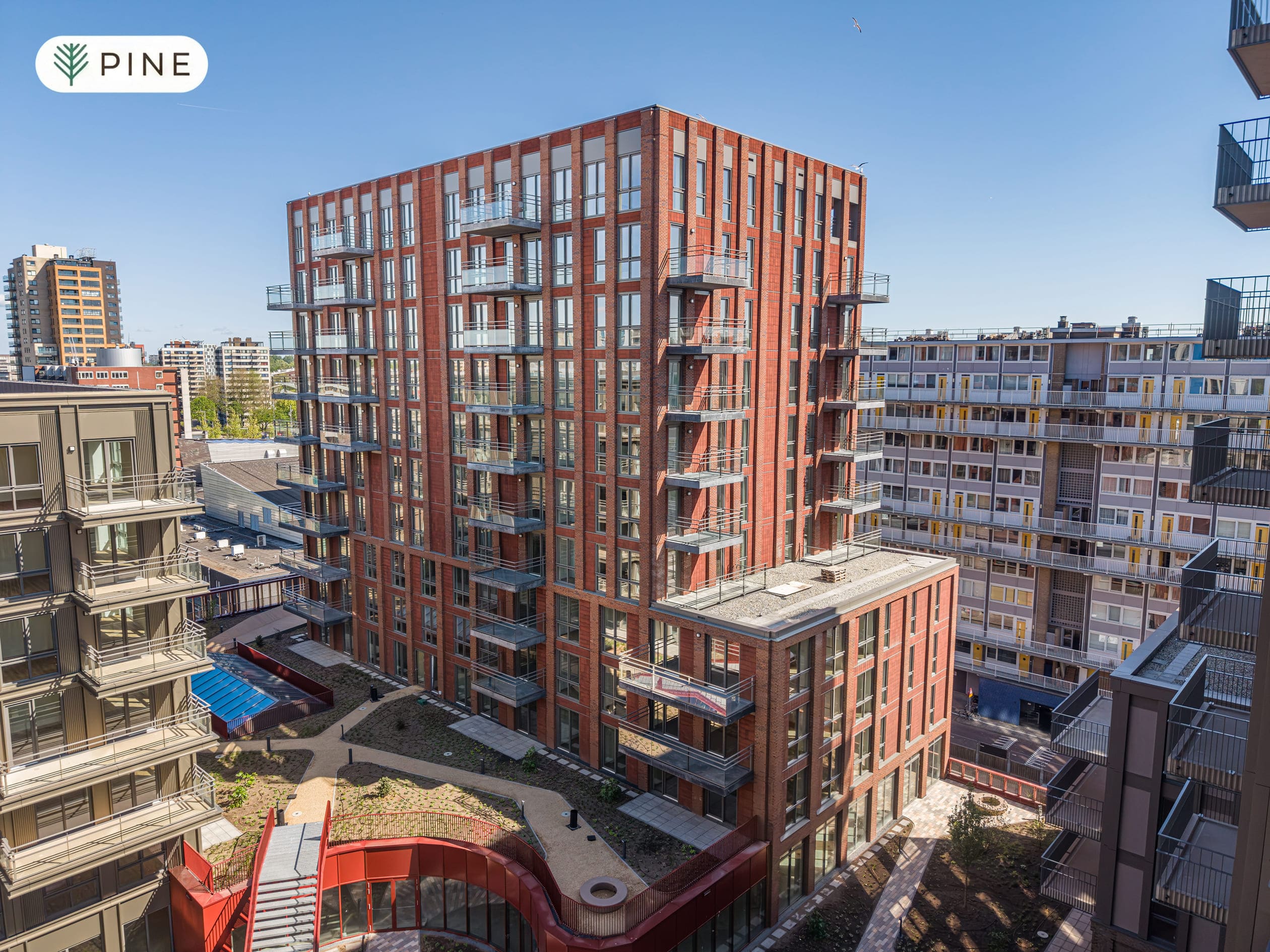
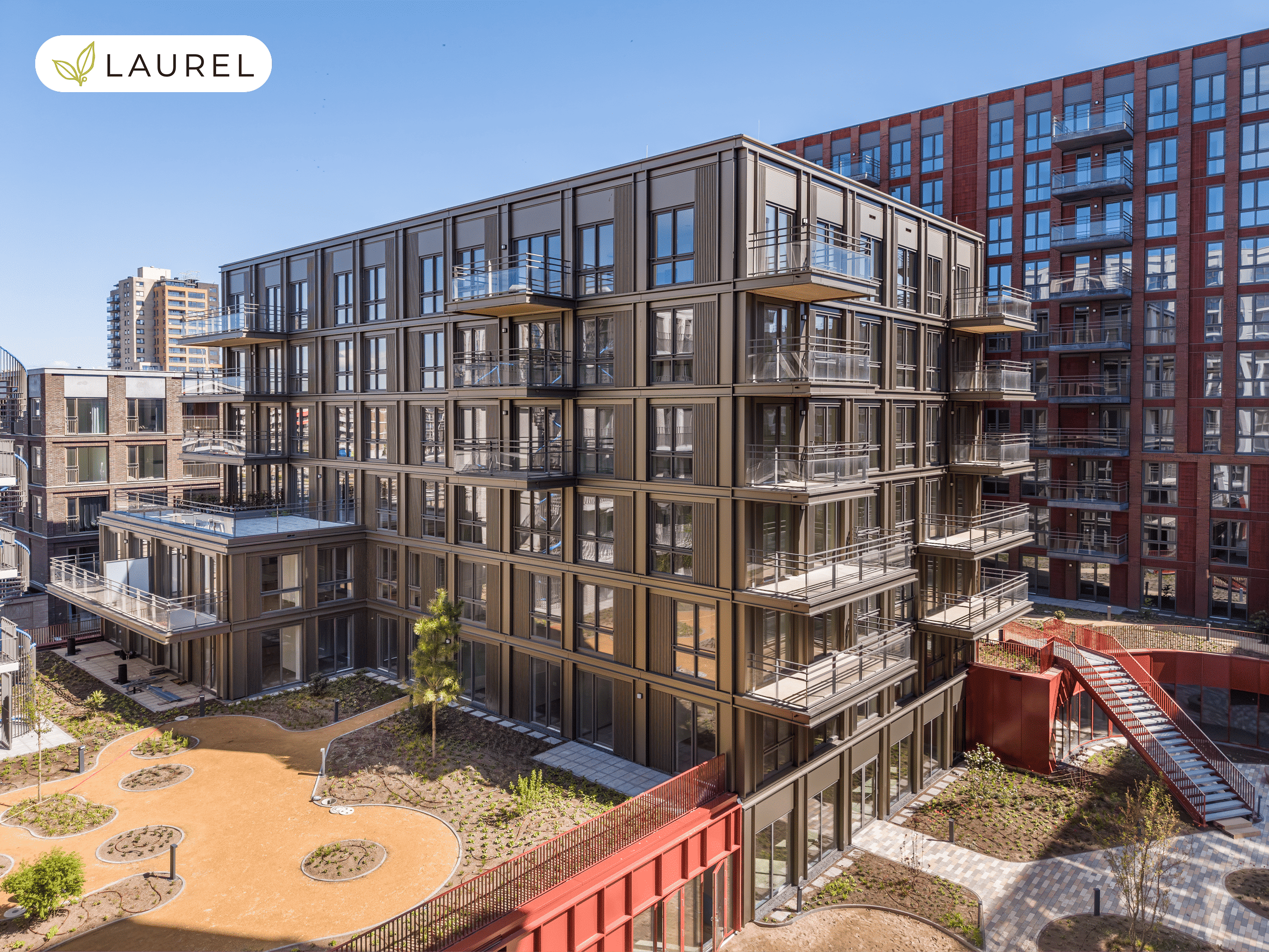
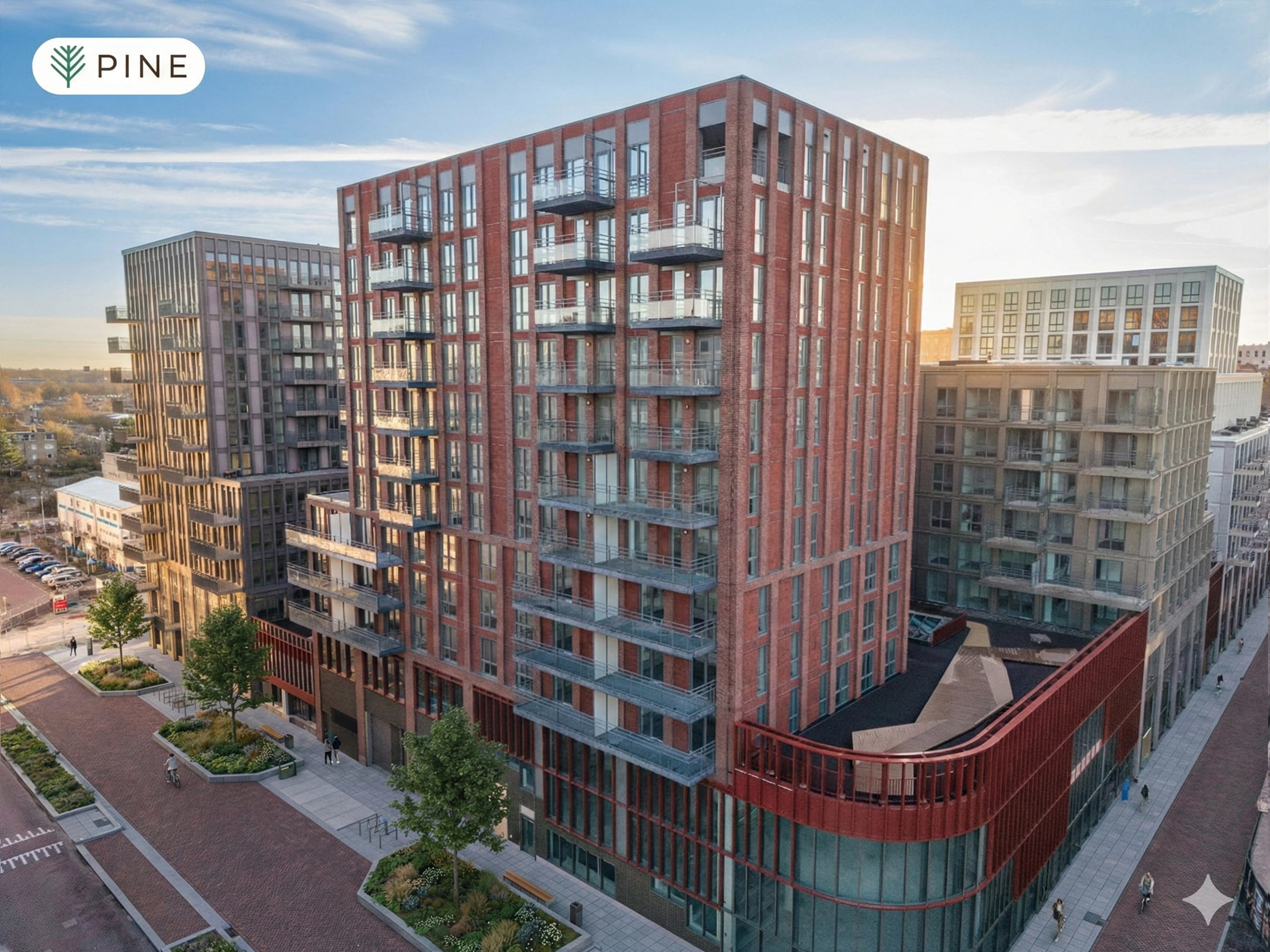
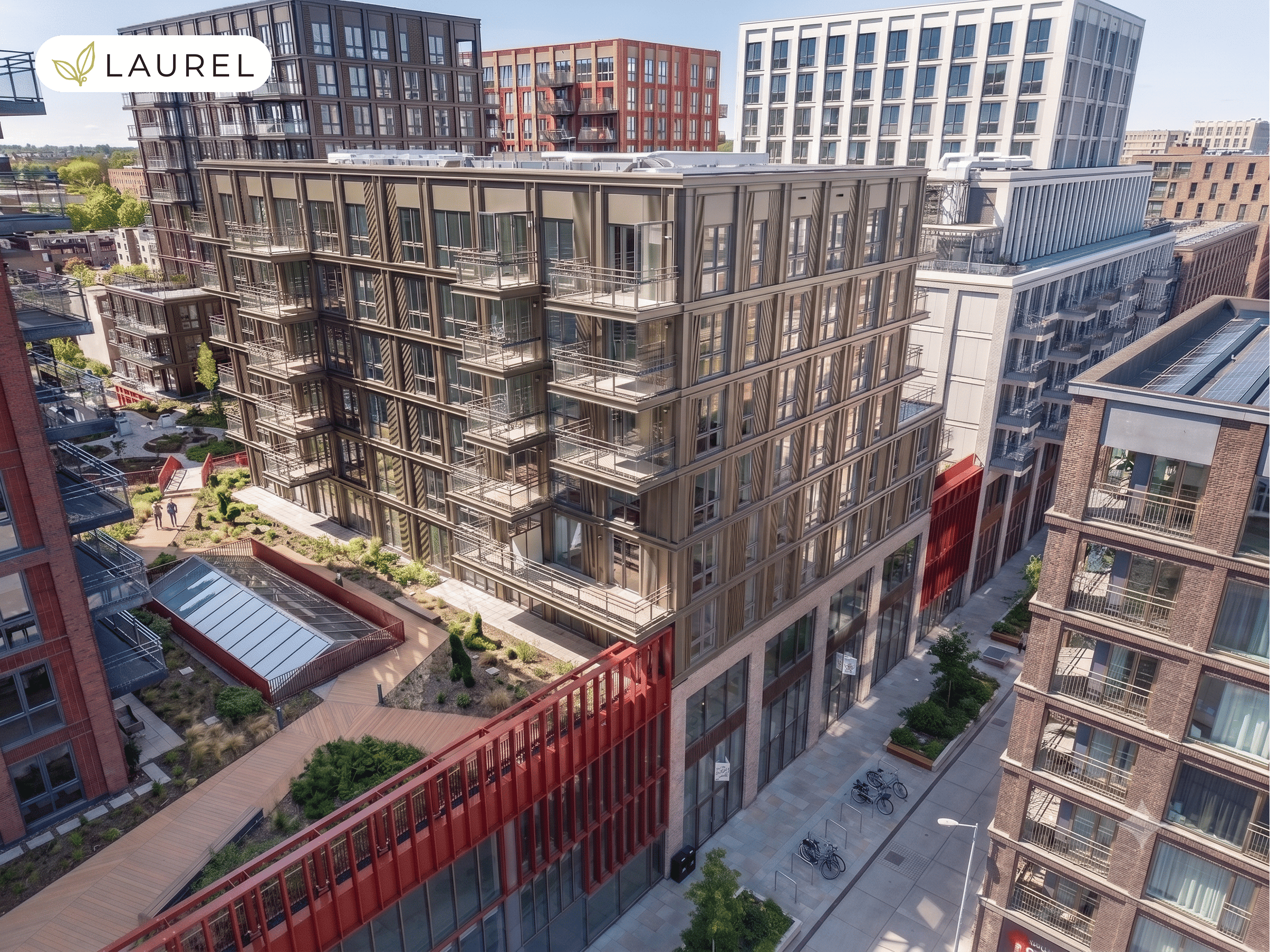
List view
Below you will find a list of all apartments. Filter according to your preferences and you will find in the list view which apartments match your preferences. You can add your preferred properties to your registration via the ‘heart’.
Filter by:
properties found
Find your home in 3 steps